In this guide
The fix that broke sign-up
A customer reports a typo on the pricing page. You fix it, push, and go to bed. In the morning: three emails saying nobody can sign in. The typo fix included a change you'd forgotten about in another file, and it went straight to production.
Nothing about this is unusual. It's what happens when every change goes live the moment you push it.
When you're the only person working on a product, it's tempting to skip any process at all. You don't need much. You need three habits: look at a change before it's live, keep the live version separate from work in progress, and know how to go back.
What a preview is
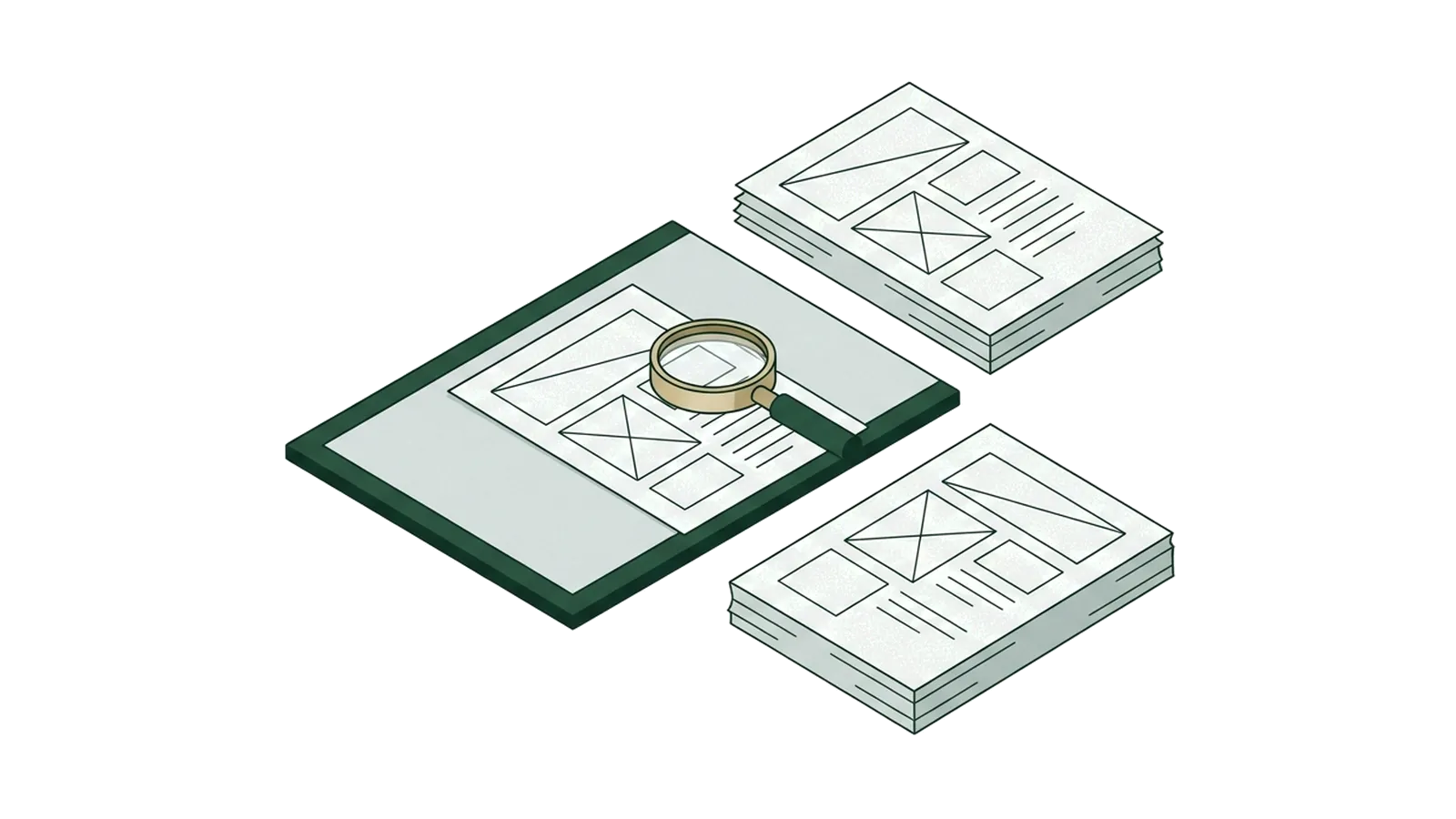
A deploy preview is a full copy of your site built from a change, on its own temporary address, without touching the live site. On Netlify, opening a pull request in a connected repository builds one automatically, with an address based on the pull request number[1]. Previews are also built when an agent run changes files on your site[1].
That gives you a place to click through the change exactly as a customer would: on your phone, with real data, before it's real.
What you get beyond the link
- Comments and screenshots directly on the preview through a collaboration drawer, useful if someone else reviews your changes[1].
- A noindex header by default, so previews don't end up in search results[1].
- Password protection or private visibility if a preview shouldn't be public; private project visibility is available on credit-based plans[1].
A branch habit for one person

You don't need a team process. You need one rule: the main branch is what customers see. Everything else happens on a branch.
- Create a branch for each change, even small ones:
fix-pricing-typo. - Push it and open a pull request. The preview builds.
- Open the preview on your phone. Click through the change and one critical path (sign-in or checkout).
- Merge only when the preview looks right. That merge is the production deploy.
It adds about two minutes per change. It also means a half-finished experiment never reaches a customer because you pushed the wrong thing.
What to check on every preview
Two minutes, every time
- The change itself, on a phone-sized screen.
- Sign-in still works.
- Checkout or the paid area still loads.
- No errors in the browser console on the pages you touched.
- Anything the change could affect indirectly: shared components, styles, environment settings.
Why this matters on usage-based hosting
On Netlify's credit-based plans, each production deploy costs 15 credits, against 300 a month on the free plan, 1,000 on Personal and from 3,000 on Pro[2]. Merging fixes one at a time in a busy week adds up quickly.
Hypothetical example
| Launch week approach | Production deploys | Credits on deploys alone |
|---|---|---|
| Push every fix straight to main | 20 | 300 |
| Check previews, batch related fixes | 8 | 120 |
The second approach also ships fewer broken deploys, which is the bigger saving. We cover the rest of launch week's limits in Free tiers that break on launch day.
Rollback: know the button before you need it

Most hosts keep a history of deploys and let you republish an earlier one in a click. That's your fastest fix for "the site is broken right now": go back first, then debug calmly.
- Find your host's deploy history page and bookmark it.
- Once, on a quiet day, publish the previous deploy, check the site, then publish the latest again.
- Write down what a rollback doesn't undo: database changes, sent emails, charges. Those need their own plan.
Do you need a staging environment?
Previews are enough when
- You're one or two people
- Changes are mostly front end and small functions
- Your test data can live in a separate test project
A staging setup earns its place when
- Changes involve database migrations
- Payments or webhooks need end-to-end testing
- Someone else signs off before release
A full change, start to finish
Hypothetical example
A customer asks for the reminder email to include the client's name. With previews, the change goes like this:
- Branch: create
reminder-client-name. Ask your assistant for the change, review the diff. - Pull request: push and open it. The preview builds on its own address.
- Check the preview: sign in with a test account, trigger a reminder to your own address, read it on your phone. The name shows, but one client with no name on file gets "Hi ,". Fix that on the same branch; the preview rebuilds.
- Critical path: sign in and open the billing page on the preview. Both still work.
- Merge: one production deploy, not three.
- After: watch errors for an hour. If anything looks wrong, roll back first, investigate second.
The bug with the missing name would have reached every customer with an incomplete client record. On the preview, it reached only you.
Keep test data out of production
Previews are only safe if they don't touch real customers. A simple split:
| Setting | Production | Previews |
|---|---|---|
| Database | Live project | A separate test project with fake data |
| Payment keys | Live keys | Test keys, test cards only |
| Email sending | Your real sending domain | A test mode, or only to your own address |
| Scheduled jobs | Run on schedule | Run manually when needed |
Most hosts let you set different environment variables for production and previews. Set them once, and every preview is automatically safe.
Habits that lead to bad deploys
- Previews pointing at the live database. Use test data and test payment keys in preview environments.
- Merging without opening the preview because "it's just copy".
- Never practising a rollback, then hunting for the button during an incident.
- Treating the AI assistant's change as reviewed because it compiled. Look at the preview; see building with an AI assistant.
Questions
Do I need Git to get previews?
For automatic previews from pull requests, yes: they come from a connected repository[1]. It's worth setting up even if you're the only developer.
Can customers stumble on a preview?
Preview addresses aren't linked anywhere, carry a noindex header, and can be password-protected or made private[1]. Don't put real secrets in them anyway.
Make your next change on a branch, open a pull request, and check the preview on your phone. Then practise one rollback this week, while nothing is on fire.
Sources
Checked 14 November 2026. Numbers in brackets in the text point to these sources.